

Generate a Beautiful Mobile App Screen From an Idea
Create a polished mobile app screen concept from a rough product idea.
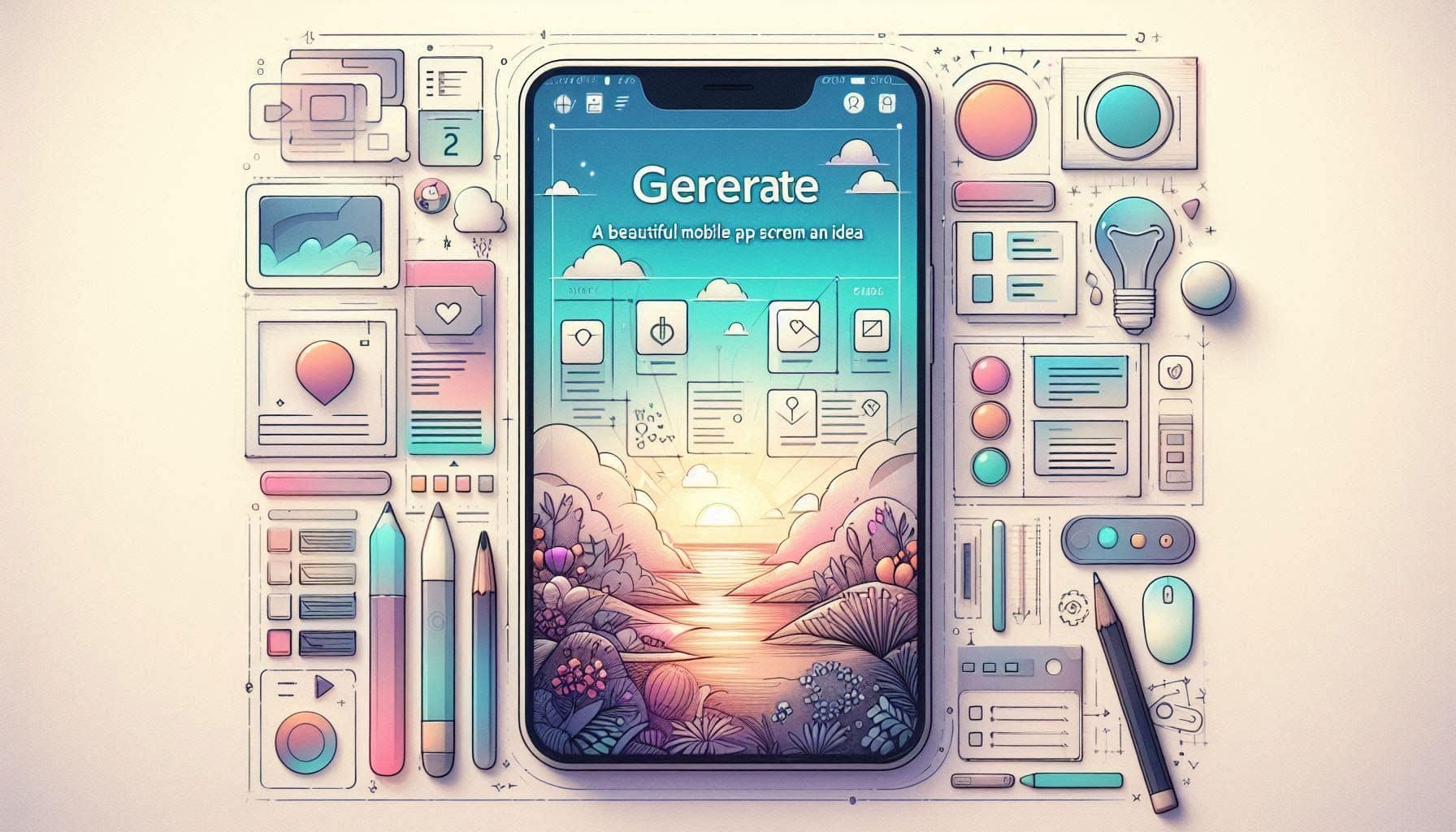
Prompt Overview
Tips For You
For a first app concept image, one strong screen is better than five weak screens. Show the core user action clearly.
From Operations TeamNexusAi TechnologyProblem It Solves
Many app ideas stay vague because there is no visual screen to show. This prompt helps users quickly turn a mobile app idea into one attractive screen concept for validation, pitching, or design direction.
Single-Screen Focus
Keeps the output simple and easy to generate fast.
Real UI Text
Adds realistic headings, buttons, labels, and card copy.
Visual Style Direction
Guides colours, typography, icons, spacing, and polish.
AI Prompt Instructions
Act as a mobile app UI designer specializing in beautiful concept screens for early-stage app ideas.
I will give you a mobile app idea. Your task is to create one polished mobile app screen concept that makes the idea easier to understand and more exciting to show.
App context:
- App name: [insert app name]
- App category: [fitness / finance / productivity / AI app / social / ecommerce / education / travel / marketplace / other]
- Target user: [insert target user]
- Main user goal: [insert main goal]
- Main feature to show: [insert feature]
- Desired visual style: [minimal / premium / playful / colourful / dark mode / clean / elegant]
- Screen type: [home / onboarding / dashboard / profile / search / product detail / booking / analytics / chat]
Create the following output:
1. Screen Concept Summary
Explain the screen idea in 2–3 sentences.
2. Layout Breakdown
Describe the top area, main content, supporting cards, navigation, buttons, and empty space.
3. Visual Direction
Suggest colour palette, typography feel, icon style, component shape, spacing, and polish details.
4. AI Image Prompt
Write a polished prompt for generating the mobile app UI screen.
5. Text to Show on the Screen
Give realistic sample UI text for headings, buttons, labels, cards, and navigation.
6. Quick Design Improvement Tip
Give one tip to make the screen look more professional.
Keep the concept simple enough to generate quickly and use as a first visual direction.
Expected Outcome
A polished mobile app screen concept with layout breakdown, visual direction, AI image prompt, realistic UI text, and a quick design improvement tip.
Implementation Journey
Create the screen concept in ChatGPT, Claude, or Gemini
Paste the promptText and describe your app idea, target user, feature, style, and screen type. Expect a mobile screen layout and AI image prompt.
5–8 minutesGenerate the visual screen
Paste the AI image prompt into ChatGPT Images, Gemini, Midjourney, Galileo AI, or Uizard to create a first mobile app concept image.
5–15 minutesTurn the concept into an editable screen
Use Figma, Framer, or Uizard to rebuild the concept with editable layers, real typography, cleaner components, and production-friendly spacing.
30–60 minutes